CE - Adding a Preferred Name in mySDCCD and Canvas
Summary
Label | Description |
|---|---|
| Module | Student Records |
| Prerequisites | Must be a student and have a mySDCCD account already created. |
| Description | This Job Aid will go over the process necessary to add a preferred name in mySDCCD |
Instructions:
| Step | Instructions |
|---|---|
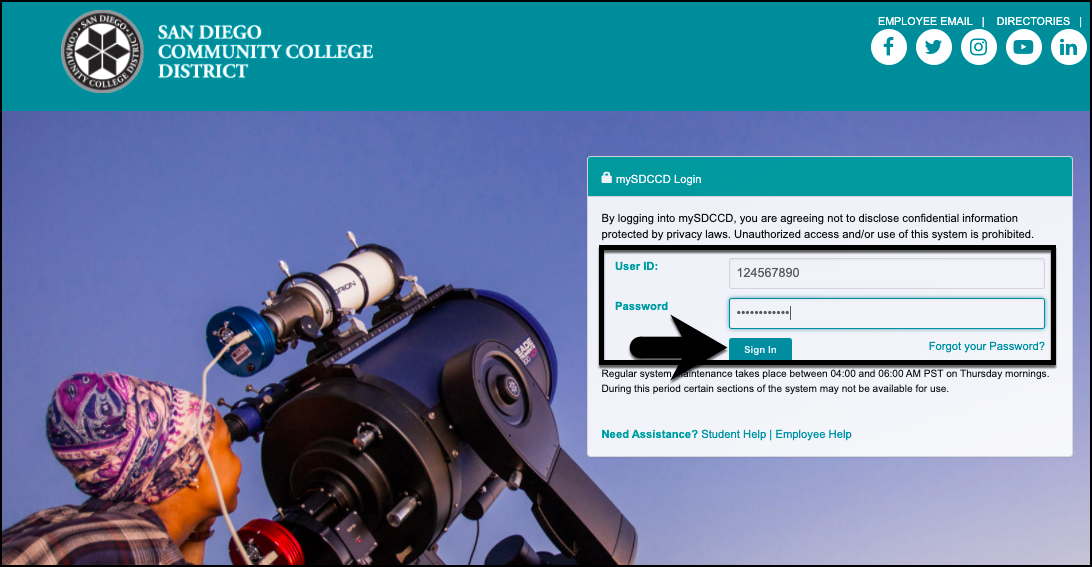
| 1 | |
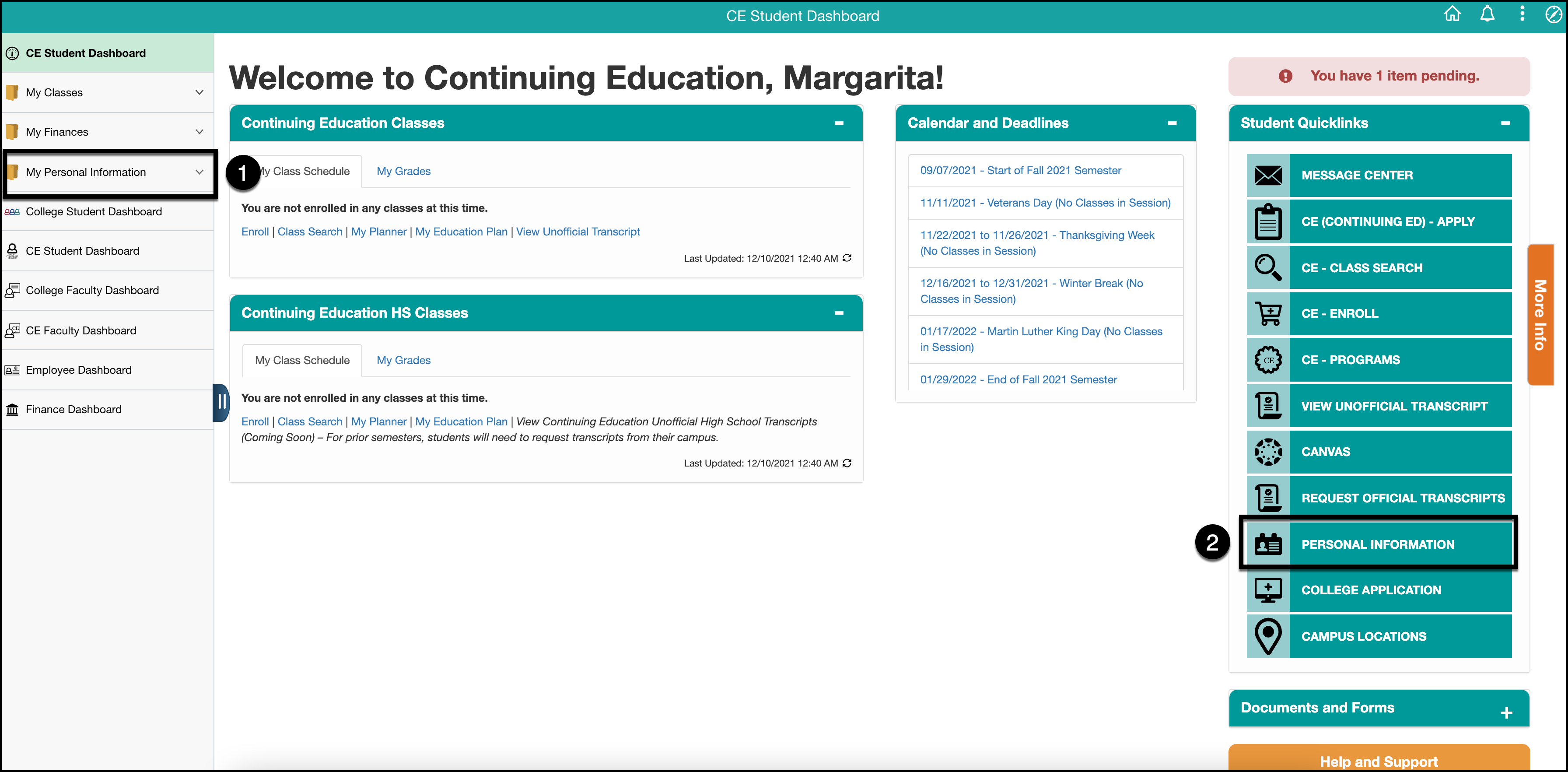
| 2 | Click on the Continuing Education Student Dashboard.
|
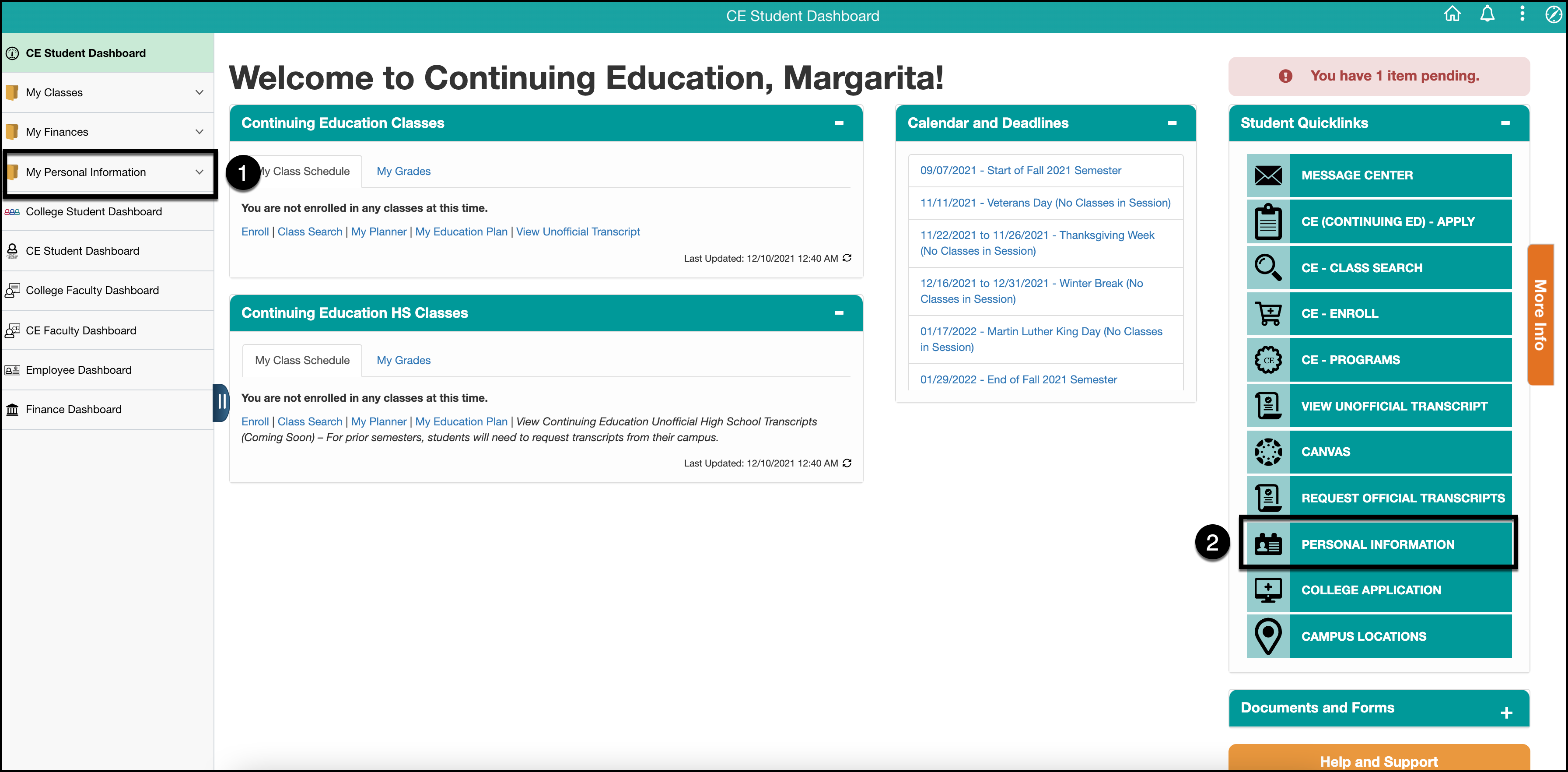
| 3 | You can access Personal Information in one of two ways:
|
| 4 |
|
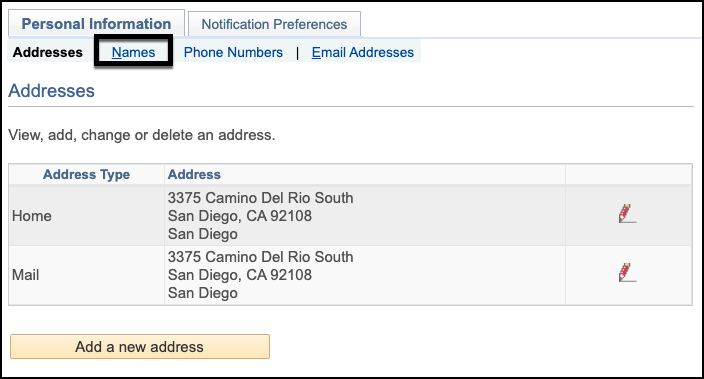
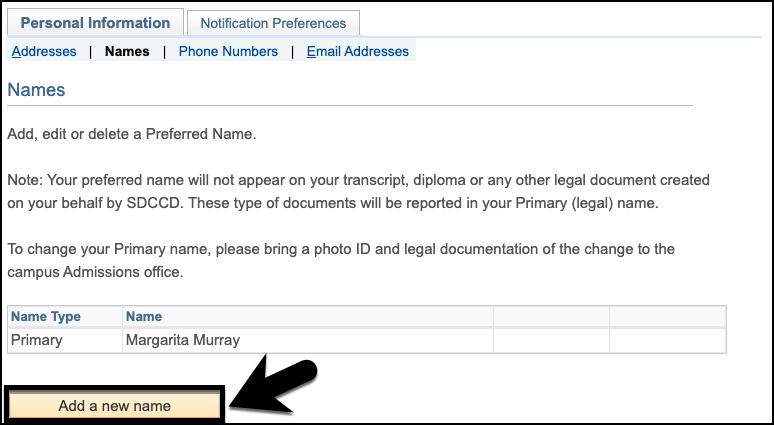
| 5 | Select the Names tab.
|
| 6 | On the Names tab, click the Add a new name button.
|
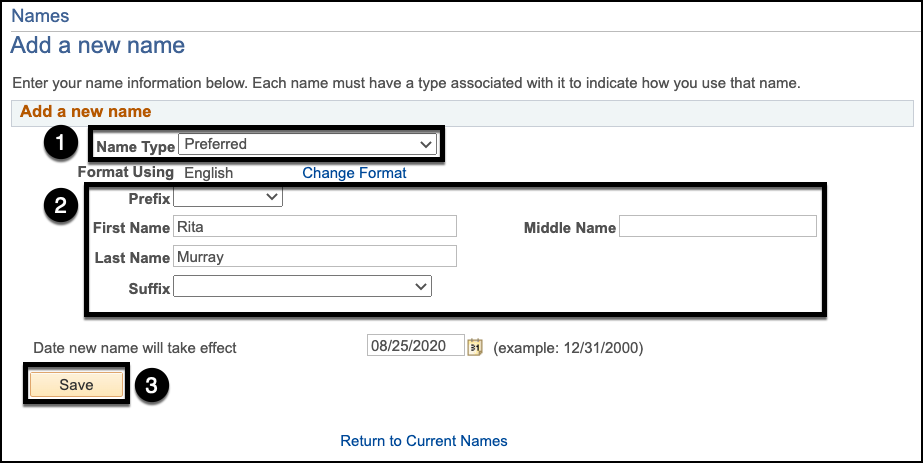
| 7 | On the Add a new name Page:
|
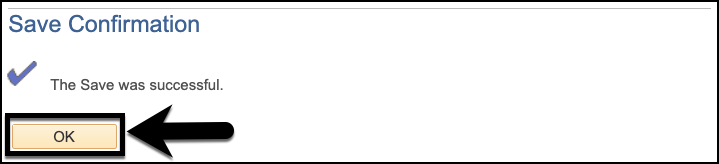
| 8 | Once the transaction is complete, you will see a Save Confirmation on a new page. Click the OK button.
|
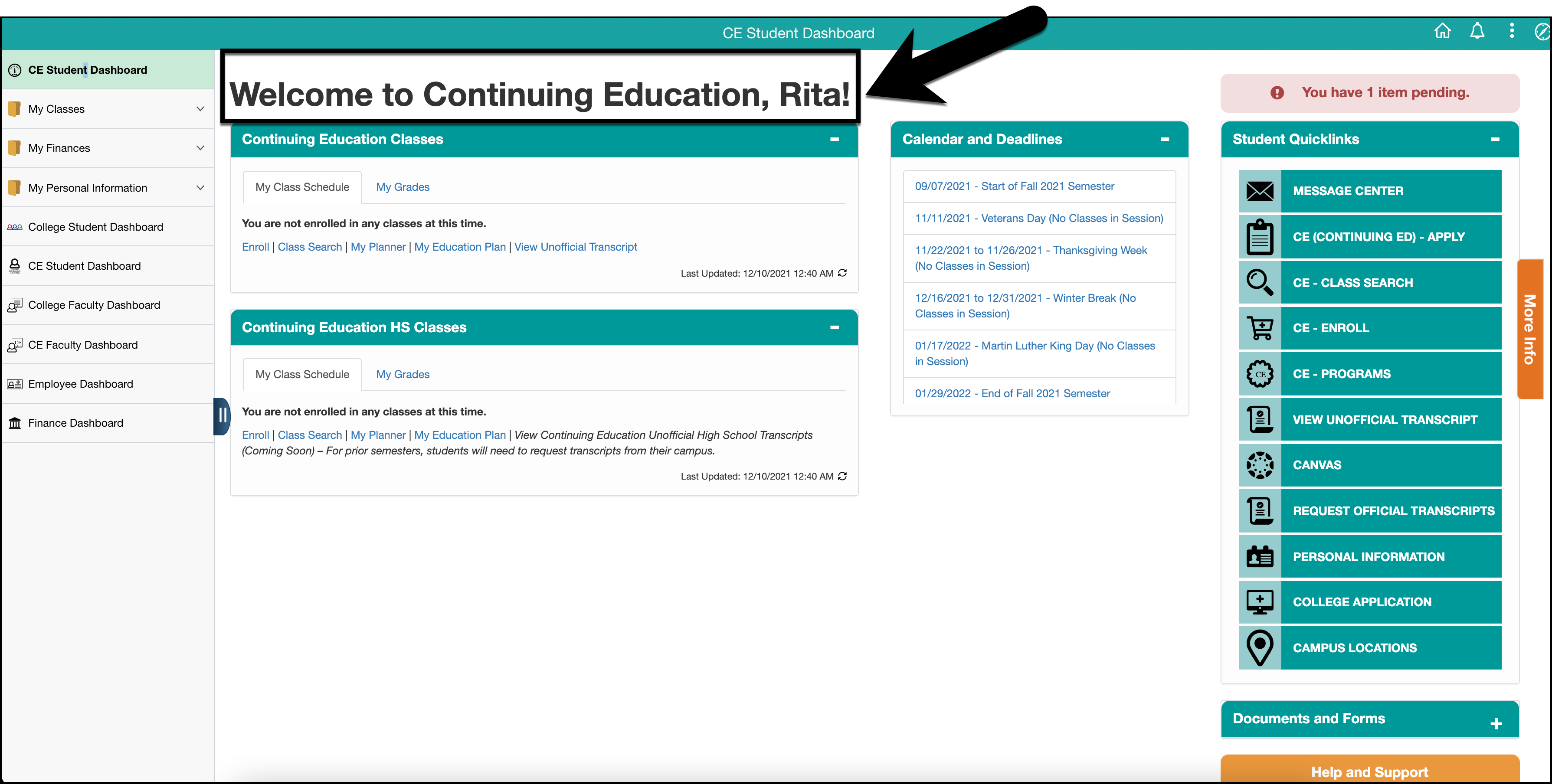
| 9 | Return to the Continuing Education Student Dashboard by expanding the left-side menu, and then clicking on CE Student Dashboard.
|
| 10 | You will see your preferred name displayed in mySDCCD on the welcome banner. Note: This change can take up to 1 business day to reflect in Canvas.
|
| 11 | End of Job Aid. |